Hello,
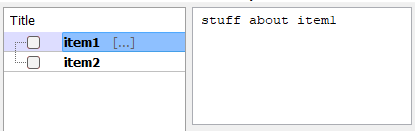
I need to write an application with text items shown in a tree on the left, and text infos about each item on the right.
It seems like the Treebok widget is the way to go, but none of the few examples I found works.
Would someone have a very basic example I could use to get started?
Thank you.
Hi,
Here are 3 examples found on the web that use a wx.TreeCtrl widget:
01_wx.TreeCtrl.py (3.1 KB)
02_wx.TreeCtrl.py (3.3 KB)
03 - wx.TreeCtrl.py (5.7 KB)
I also confirm that the examples provided on Mike Driscoll’s blog no longer work:
The “Book” Controls of wxPython (Part 1 of 2)
The “Book” Controls of wxPython (Part 2 of 2)
2 Likes
Attached you will find the updated demos for:
- wx.Treebook
- wx.Notebook
- wx.Listbook
- wx.Choicebook
- wx.aui.AuiNotebook
Updated_full_demo.zip (368.3 KB)
Thanks to Mike for these always very useful examples 
2 Likes
Did you try the wxPython demo? I did not try with the latest wxPython version, but at least with 4.2.2. the Treebok demo did work.
1 Like
Indeed. I googled for infos on how to combine a tree control and a text control but didn’t think of also looking in the demo.
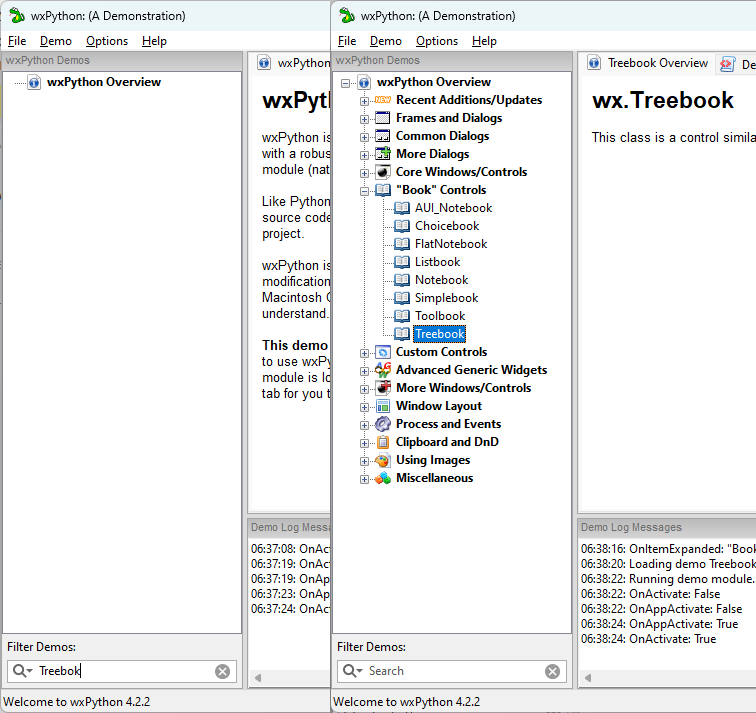
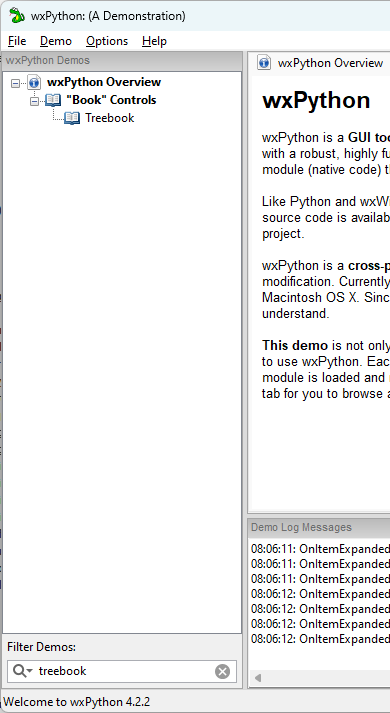
I notice searching for “treebook” returns no hit:
From the image, you searched for “Treebok” ?
I did something similar using a split screen, synchronized custom scrolling and two synchronized trees, one in each pane of the split screen. The left tree showed files and folders, the right tree further information. It was bit complicated but it worked. .
However, as the number of items displayed increased it became very slow to display the tree. For example, on a fast PC with SSDs storage, listing a tree of 200 files took around 10 seconds, and about 30 seconds for 500 files.
So I’ve been rewriting it using the virtual wx.DataViewCtrl and that is super fast!
I strongly recommend using using a virtual list or virtual grid if it will do the job for you.
2 Likes
I’ll rarely have to display more than a handful of items, and it’ll be a one-level tree (no sub-items), but I’ll keep that info.